Languages
A page can have its own text, blocks and address in each of the site's languages. One language is the default: the others are translated from it, and fall back to it where they are not.
Editing a language #
Pick the language you edit in the Locale menu at the top of the admin. While it is not the default language, a coloured label, ✎ Editing DA · Dansk, says which one it is, so you never change the wrong one by mistake. The admin remembers the language you picked last.
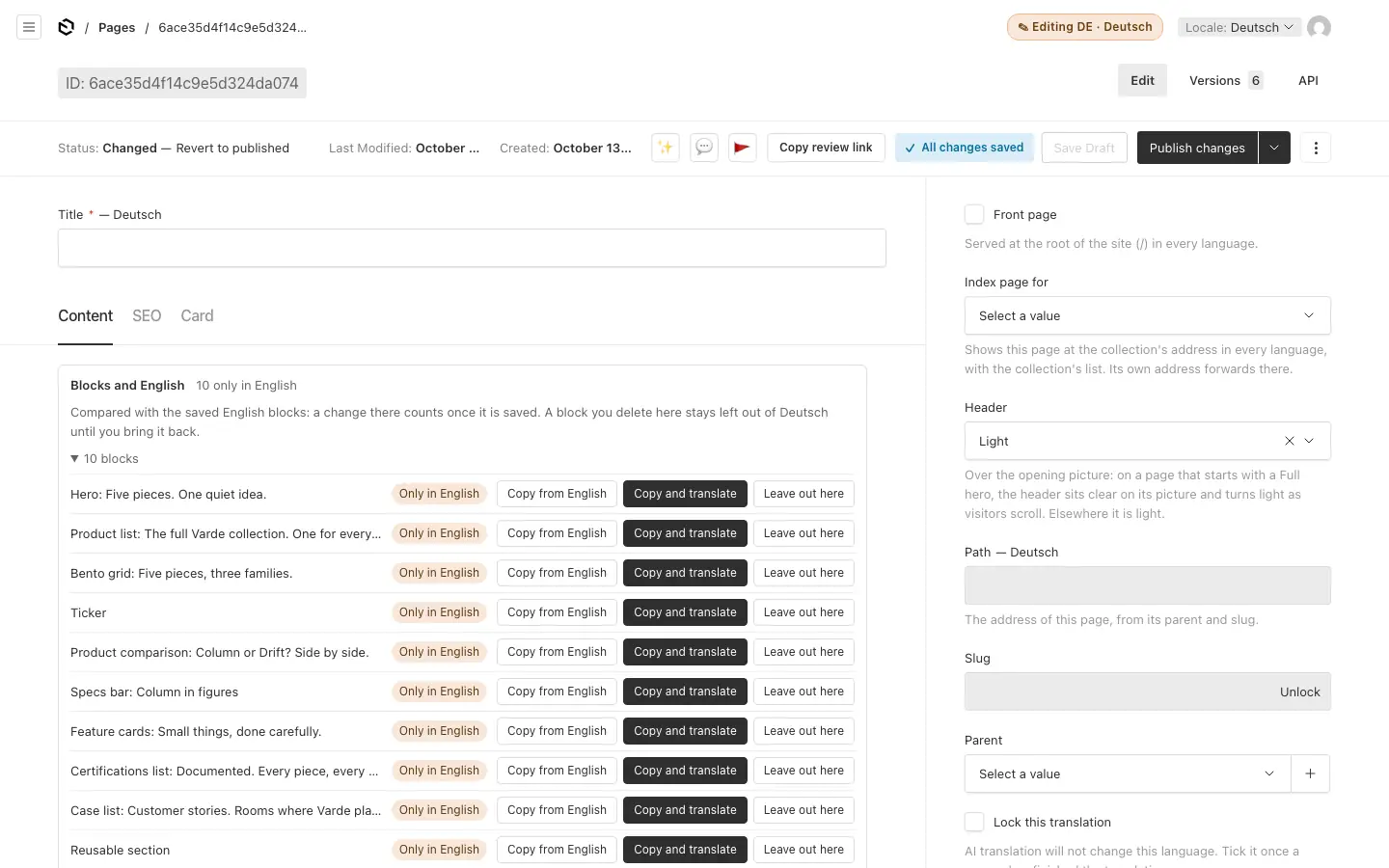
In each language the admin shows only that language's content: an empty field is one that shows the default language's text on the site. Fields that are the same in every language (a date, a picture, a setting) are not marked with a language; changing them changes every language.
Addresses #
- The default language has no prefix:
/about. Other languages start with their code:/da/om-os. - Each language has its own slug, made from that language's title the first time the page is saved in it. After that it never changes by itself: a new title does not move the page.
- A page's address is its parent's address in the same language plus its own slug:
about/teamandom-os/holdet. - Until a language has its own slug, the page uses the default language's address with the language prefix. Once it has one, the old address sends visitors to the new one.
- When a published page moves, with a new slug or a new parent, its old address keeps working through a permanent redirect, in each language.
Fallback #
Visitors never meet an empty page because a translation is missing:
- An empty text field shows the default language's text.
- A page's blocks are the default language's until you add blocks in its own language. From then on the language has its own blocks, and the panel above them shows which ones the default language has changed since. See Blocks in other languages.
- A block's Visibility tab can show or hide it per language. That matters most where a language falls back to the default language's blocks.
Starting a language #
- With AI translation: ✨ Translate fills a language in one go, as a draft to read before you publish. See ✨ Translate.
- By hand: Copy to locale, in the document's ⋮ menu, copies the default language's content into another language, ready to translate over.
- Blocks one by one: the block panel above the layout copies blocks from the default language and keeps them linked.
Publishing languages #
Publish changes publishes every language of the document at once. Check the other languages before you publish a page you changed in one. To publish only the language on screen, open the menu beside the button and choose Publish in that language.
Interface texts, such as button labels and messages, are set per language under Settings → Microcopy.