Media
Images, videos and PDFs live in Content → Media. Upload a file once and use it on any page.
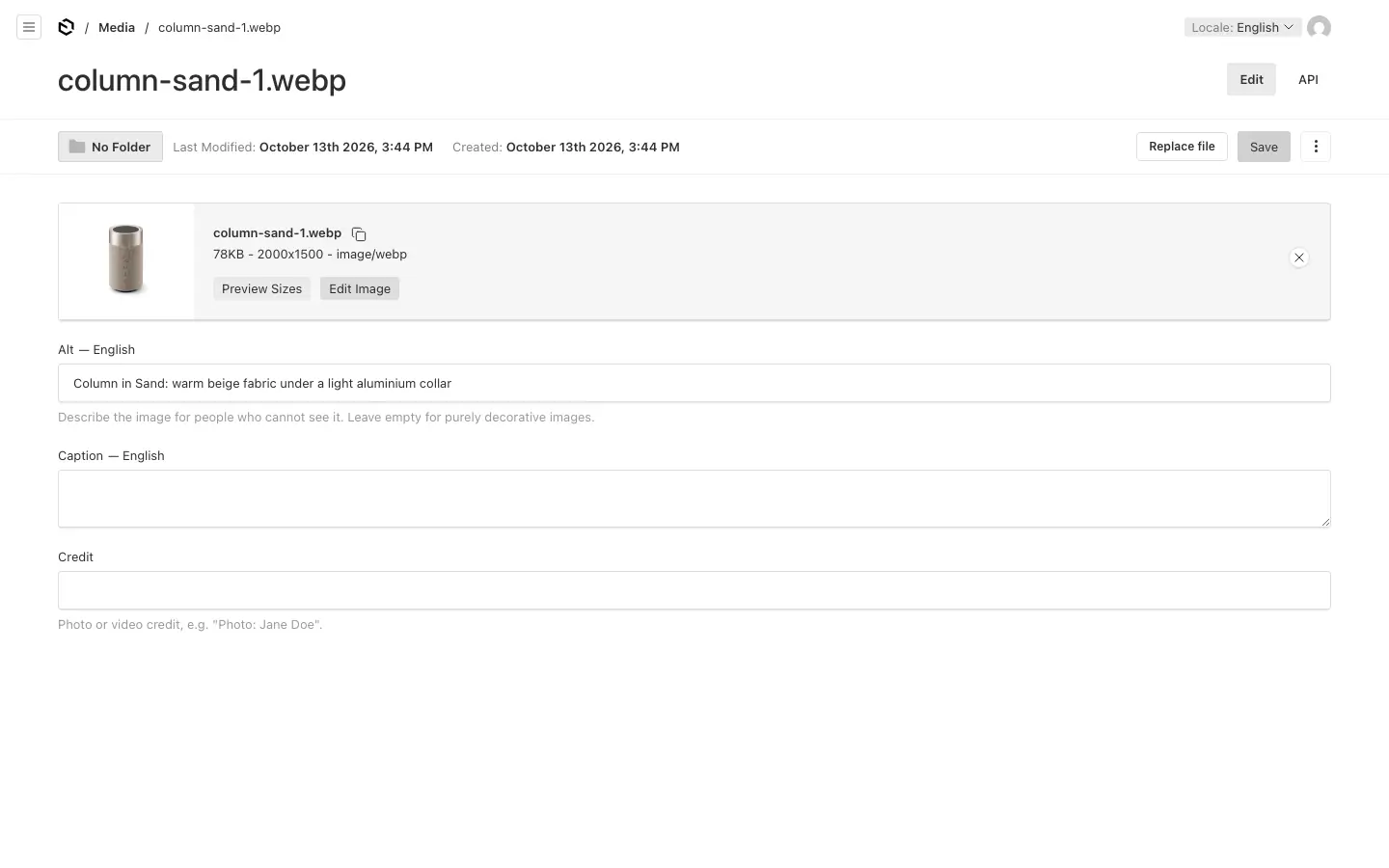
Upload #
- Open Media and press Create New, or drop a file in.
- Write the Alt text: what the picture shows, for people who cannot see it. Leave it empty only for pure decoration.
- Add a Credit when the photographer must be named, and a Caption if the picture needs one.
Alt text and caption are written per language: switch the language at the top of the admin to write them in another.
You do not need to resize pictures first. The site makes smaller copies for every screen size and scales very large originals down to 3200 pixels. To keep the important part of a picture in view when it is cropped, press Edit Image and set the focal point.
Folders #
Switch the Media list to By Folder (or use Browse by Folder in the sidebar) to create folders and move files into them. Folders only sort the library: a file keeps its address wherever it is.
A File list block shows a folder on a page as a download list, with its subfolders as sections. Files you add to the folder appear on the page by themselves.
Replace a file #
Open the media item and press Replace file to upload a new version of the same type (a .pdf for a .pdf). It keeps its name and address, so every link to it shows the new version, including links pasted into emails or other websites. The old file is overwritten for good. Editors and admins can replace files.
Uploading a new file in the item's file field instead gives it a new name and address. Links made with the File link type follow along; addresses pasted elsewhere stop working.
Deleting a media item removes it from every page that uses it.
Icons and pictograms #
Icons are small symbols beside text; pictograms are larger drawings that carry a card or a panel. Both are libraries of SVG drawings under Content.
- Use one: in a Feature grid card, set Visual to Icon or Pictogram and open the picker. Search by name or keyword, or filter by size. The colour Auto is the accent colour that reads on the block's background.
- Add one: press Create New in Icons or Pictograms, give it a Name and a Size, paste the SVG markup and add Keywords. A drawing that uses
currentColortakes the colour the block picks. Scripts in pasted SVG are removed when you save. - Renaming is safe: blocks remember an icon by its slug, made from the name once and then kept. Deleting one leaves the blocks that used it without an icon.