✨ Translate
The ✨ button sits in the toolbar of every document that has drafts (pages, articles, case studies, jobs, products, features, reusable sections, the guides) and of the header, footer, microcopy and site settings. It translates the saved text of the default language into the languages you pick.
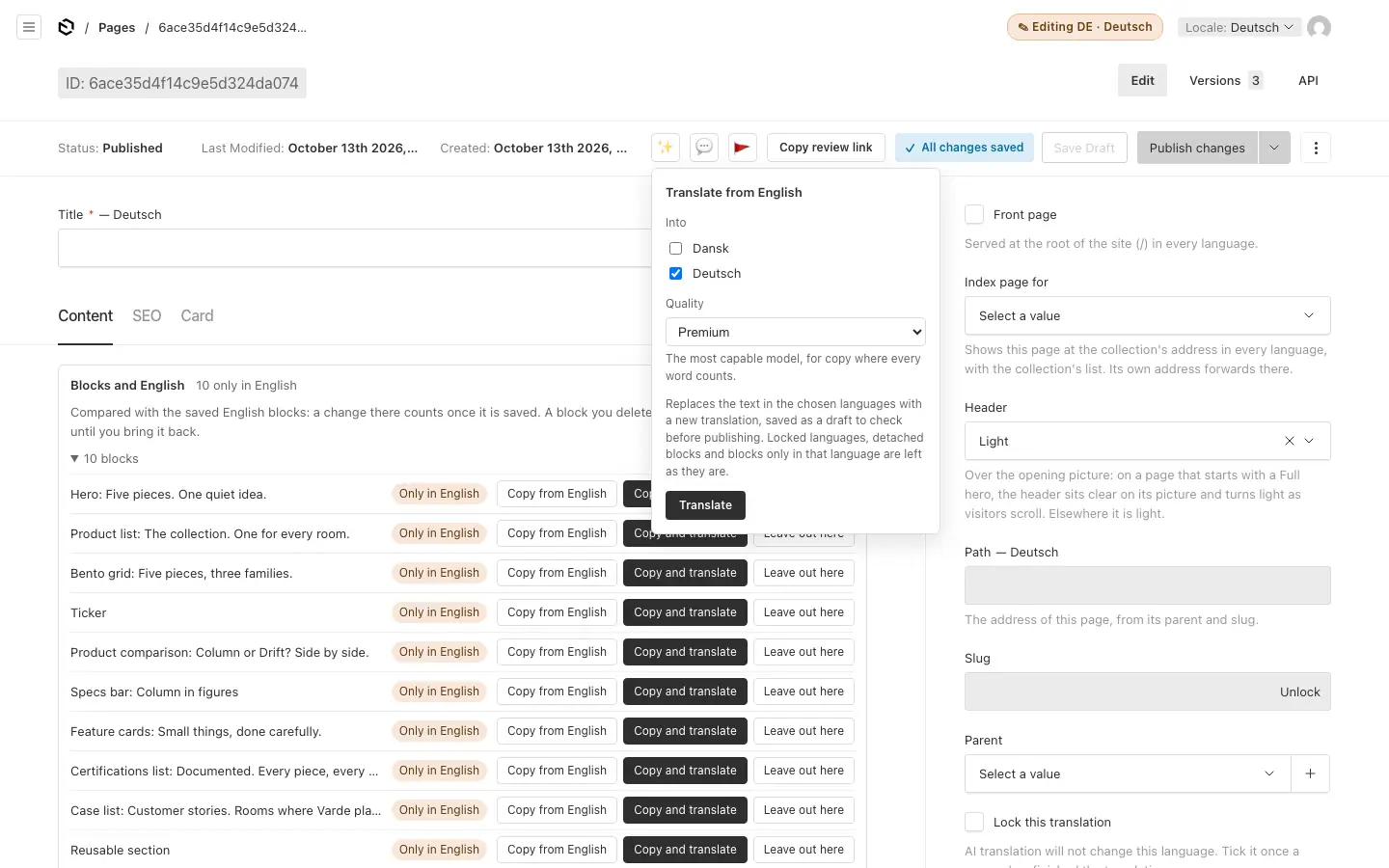
Translate a document #
Save first. The translation starts from the saved text of the default language, its latest draft included. With unsaved changes, it stops and asks you to save.
Press ✨. Under Into, tick the languages. On a language's tab, only that language is ticked; on the default language's tab, all of them are.
Pick the Quality:
- Premium: the most capable model, for copy where every word counts.
- Standard: strong and quicker, at about half the cost.
- Fast: the cheapest, without a review, for drafts a person will rework.
The style guide sets which one is chosen at first.
Press Translate. It works through the languages one at a time and tells you how far it is.
On documents with drafts, each language is saved as a draft: the live page does not change until you read it and publish. On the header, footer, microcopy and site settings, which have no drafts, the translation is live at once.
A run replaces the text of the chosen languages with a new translation, except:
- Locked languages. Tick Lock this translation in a language's sidebar once a person has finished it: AI translation leaves it alone from then on.
- Blocks that belong to the language: detached blocks, blocks only in that language, and blocks left out of it are kept as they are (see Blocks in other languages).
- Approved translation memory: texts people approved before are reused word for word.
- What is not prose: addresses, email addresses, codes and numbers on their own are never sent.
The report #
When the run is done, messages say how it went, per language. Read them before you publish:
- Saved as a draft (or, for settings without drafts, live).
- Glossary terms to check: a term that must be translated one way and is not, after one retry.
- Texts cut to fit their field: a translation too long for its field is rewritten shorter once, and cut at a word if it still does not fit. Read those.
- Texts left in the default language, if any.
- The review: what it revised, and texts it was unsure about.
- Terms the glossary has no decision for yet in that language.
- Kept blocks and texts from Translation memory, so you know what was not translated anew.
When something fails (the AI service is busy, or its account has run out of credit), the message says so in plain words, and nothing is saved for that language.
The review pass #
After translating, a second AI reading, by a native-speaking copywriter, revises what reads as translated. How far it goes depends on the kind of text: headlines and buttons are rewritten to a copywriter's standard; body text is changed only where it reads unnaturally; technical data and legal text only where there is a real error.
- It runs on marketing copy by default. The style guide can set it to all text, or off.
- It never runs at Fast quality.
- A revision that breaks the glossary, loses formatting or does not fit its field is dropped, and the first translation kept.
- What it changed waits in the 💬 Copy desk, to keep or revert.
After translating #
- Read the draft in each language, and correct what you would say differently. Publishing your corrections teaches Translation memory (see How the translator learns).
- Something wrong you cannot fix yourself? Press 🚩 (Report translation) in that language and say what is wrong. An editor sees the report in Translation status.
- Publish with Publish changes, or one language at a time from Translation status.
To translate many documents at once, use Translate the whole site in Translation status.