Files and imports
Translate a file #
Translation → Translate a file translates a document written in the default language into the languages you choose, one file per language. Layout, styles, tables and pictures stay as they were; only the text changes. Every role may use it: it changes nothing on the site.
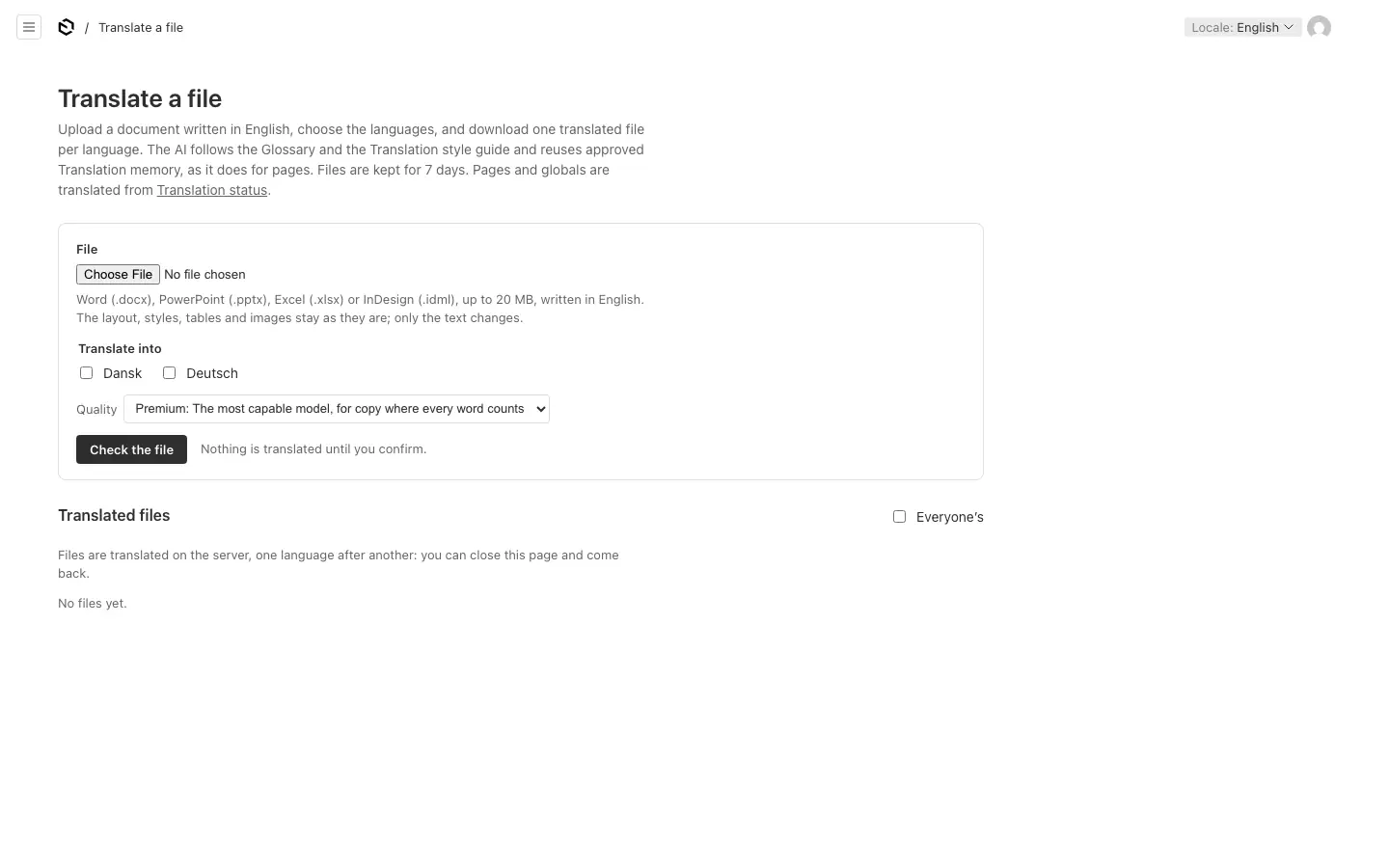
- Upload a Word (
.docx), PowerPoint (.pptx), Excel (.xlsx,.xlsm) or InDesign (.idml) file. - Tick the languages under Translate into and pick the Quality.
- Press Check the file. Nothing is translated yet: you see its paragraphs and words, and how many of them approved Translation memory already covers in each language.
- Press Translate into … to start, or Cancel.
The server translates one language after another, so you can close the page. Each file follows the Glossary and the style guide, reuses approved memory, and gets the review pass, as pages do.
What is translated: paragraphs, never loose bits of formatting: a paragraph with a bold word goes to the AI as one sentence, so the bold lands on the right word. Paragraphs of numbers only are skipped. Word: the body, headers, footers, footnotes and text boxes. PowerPoint: the slides, not the speaker notes. Excel: text cells, never formulas or numbers. InDesign: every story, master spreads included.
The report per language says what came from memory, what was left untranslated, what the review changed, glossary rules still broken, terms not decided for that language yet, paragraphs whose formatting collapsed, and paragraphs that grew more than 30 % (check that the text still fits its box).
Downloads: Download gives the translated file. Segment pairs gives the exact texts and their translations as a file. Changed the wording in Word or InDesign afterwards? Put the changes into the segment pairs and bring them in through Import translations: the next translation reuses your wording.
Who sees what: you see your own files; editors and admins can tick Everyone's. Files and their jobs are deleted after seven days.
Import translations #
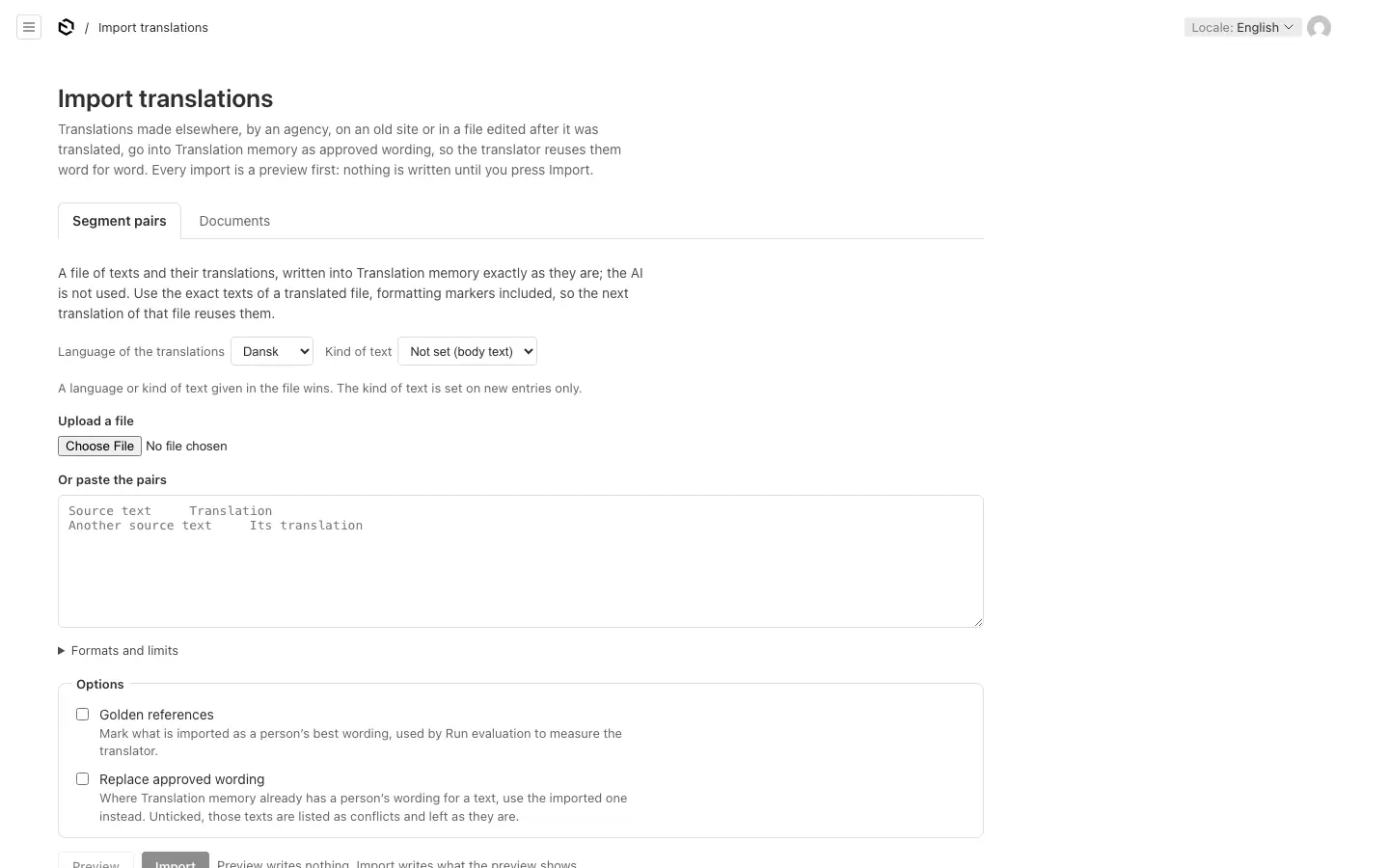
Translation → Import translations (editors and admins) brings translations made elsewhere, by an agency, on an old site, or in a file edited after it was translated, into Translation memory as approved wording. Every import is a preview first: nothing is written until you press Import, and importing the same thing twice changes nothing.
Segment pairs #
A file of texts and their translations, written into memory exactly as they are. The AI is not used.
- Choose the Language of the translations and, optionally, the Kind of text (headline, body text, button or link, technical data, legal text). A language or kind given in the file wins.
- Upload a
.json,.tsvor.txtfile, or paste the pairs. - Tab-separated: one pair per line: the text, a tab, its translation. Optional columns after them are the kind of text and the language; a header row (
source,target,context,locale) can set another order. Pasting from a spreadsheet works. - JSON:
{ "locale": "da", "pairs": [{ "source": "…", "target": "…", "context": "body" }] }, the same shape as a file translation's segment pairs. - Up to 5,000 pairs and 5 MB per import. Texts longer than 600 characters, and pairs whose translation equals the source, are skipped.
Documents #
An original document and its approved translation per language (PDF, Word, HTML or text). The AI pairs their sentences; it translates nothing. Pairs it cannot find word for word in the documents are left out. Tick Suggest glossary terms to have it propose terms as well, added unreviewed. Documents need AI translation to be on.
Both #
- Golden references marks the imported wording as model translations, for evaluations.
- Replace approved wording: where memory already has a person's wording for a text, use the imported one. Unticked, those texts are listed as conflicts and left as they are. AI drafts always give way to an import.
After Preview, the report lists what is new, updated, unchanged and in conflict. Import writes it, with links to Translation memory and, for suggested terms, the Glossary.