Blocks in other languages
Each language of a page has its own blocks. Most are copies of the default language's, kept linked to them, so you can see when the original changed and bring the copy up to date. Some belong to one language only. The panel above the layout shows the state of every block and fixes it.
This works without AI translation. Only the buttons ending in "and translate" need it.
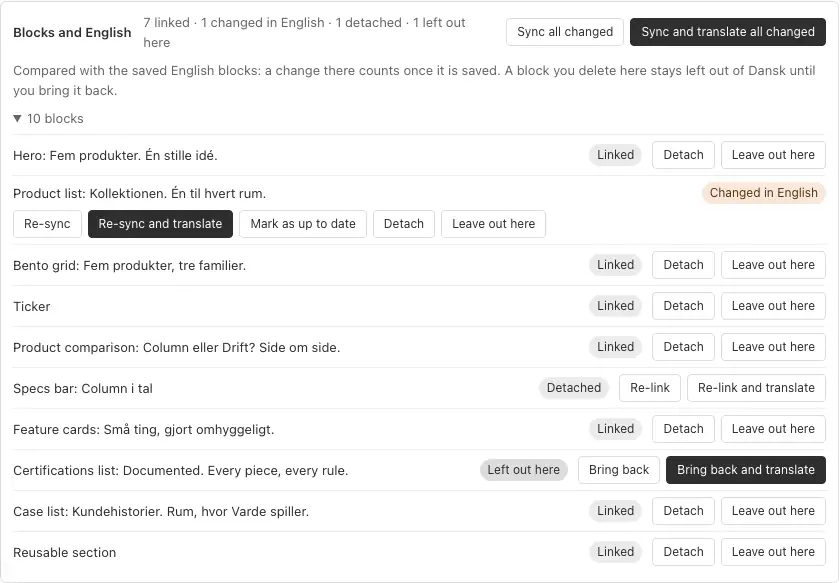
In a language other than the default #
The panel, Blocks and the default language, sums up the blocks (for example "4 linked · 1 changed in English · 1 detached · 1 left out here") and lists each block with its state:
| State | Meaning | What you can do |
|---|---|---|
| Linked | A copy of the default language's block, up to date. | Detach, Leave out here |
| Changed in the default language | The original has changed since this copy was made. | Re-sync (copy the original again, its text included), Re-sync and translate, Mark as up to date (you changed the copy by hand already), Detach, Leave out here |
| Only in the default language | Not copied into this language yet. | Copy from the default language, Copy and translate, Leave out here |
| Detached | This language's own block: changes to the original no longer reach it. | Re-link, Re-link and translate |
| Left out here | Deleted from this language on purpose. | Bring back, Bring back and translate |
| Only in this language | A block only this language has. It is never removed by itself; delete it in the layout if it is no longer wanted. | — |
- Sync all changed (and Sync and translate all changed) re-syncs every changed block at once.
- Copying puts the default language's text into the block. Translate it afterwards, or use the "and translate" button.
- "Changed" means saved. The panel compares with the default language's saved blocks, its drafts included: a change there counts as soon as it is saved.
- Save first. The panel works on saved blocks; with unsaved changes it asks you to save. Each action saves (a draft, where the document has drafts) and reloads the page.
- Without drafts, a language must be complete first. Where there are no drafts (product families, say), every save is checked, so a language without its own title cannot take a block yet. The panel says which fields to write in that language first; it never copies them from the default language.
- Deleting a block in a language's layout and saving leaves it out of that language. ✨ Translate and syncing never add it back until you press Bring back.
- Some settings are each language's own: a block's Visibility (languages and screen sizes). Changing them in the default language does not mark copies as changed, and a re-sync keeps the language's own value.
A language whose blocks are behind shows Needs an update in Translation status.
In the default language #
Editors and admins see a folded panel, Blocks in other languages, with each block's state in every other language. Push to all languages copies a block into every language: it replaces linked copies and adds it where it is missing, and asks first before it overwrites a detached copy or brings back a block that was left out. Push and translate translates as it pushes.
Locked languages keep AI translation out, not people: copying a block works there, and so does Push to all languages. Push and translate skips them.
When a language has no blocks yet #
A language without blocks of its own shows the default language's on the site, and its layout in the admin is empty with Fallback to default locale ticked. Every block is then Only in the default language: copy them, or let ✨ Translate add and translate them all.