Publishing, scheduling and review links
Drafts #
Pages, articles, case studies, jobs, products, features, reusable sections and the guides have drafts. On all but the guides, your changes are saved as a draft every few seconds while you work; the badge beside the buttons says Saving…, Unsaved changes or All changes saved. Save Draft saves at once.
Nothing reaches the site until you publish. The dashboard's Needs attention lists documents with unpublished changes and drafts never published.
Versions, at the top of a document, lists its saved versions: compare them, and restore an old one.
Documents without drafts (dealers, product families, certifications, media, topics, authors, and the settings under Settings) are live as soon as you Save.
Publish #
Publish changes puts the draft live, in every language at once. Check the other languages before you publish a page you changed in one.
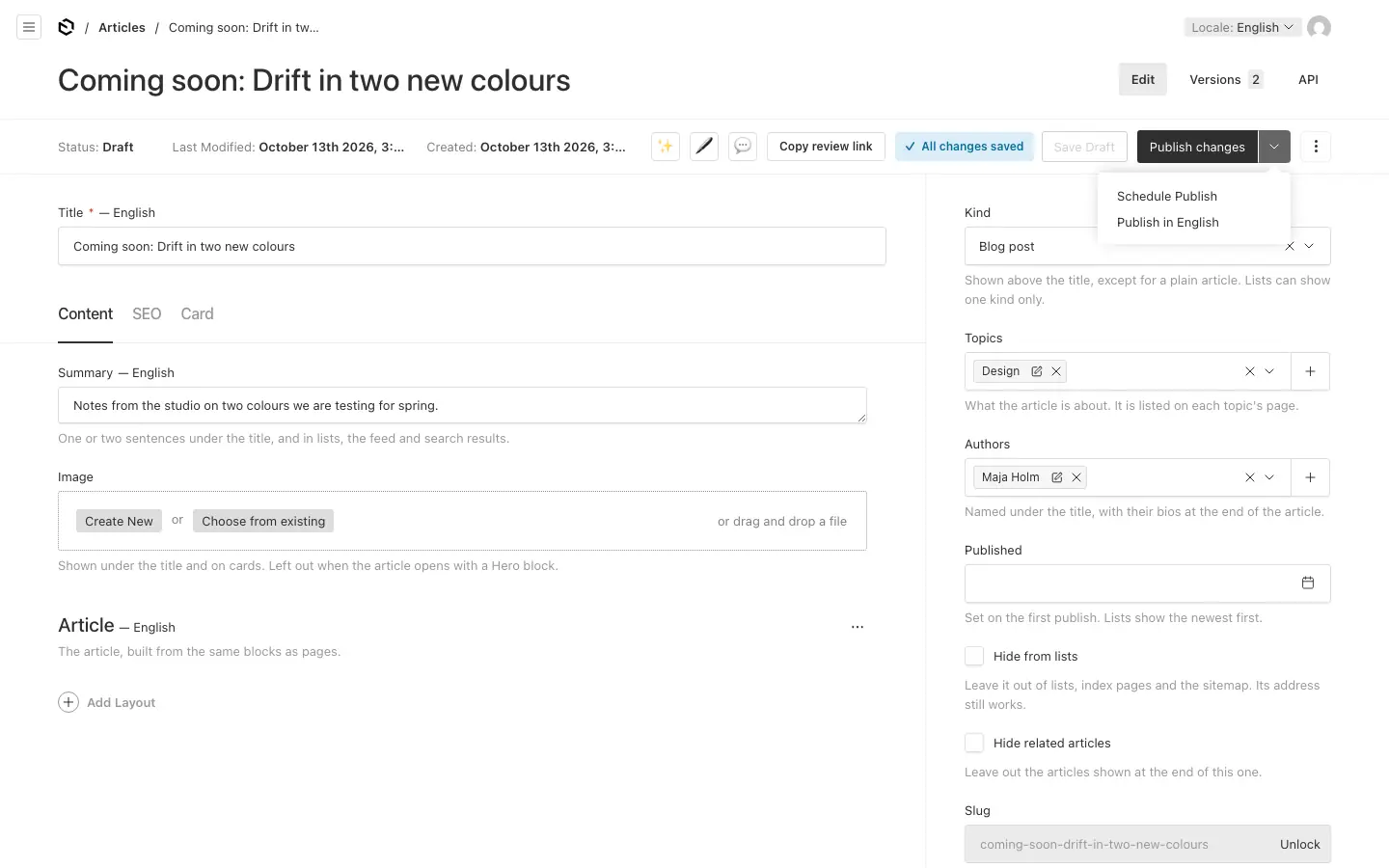
The arrow beside it opens a menu:
- Publish in a language: puts only the language on screen live, and leaves the others as they are.
- Schedule Publish: see below.
Translation status can also publish one language of a document that is already live.
A published page whose address changes (a new slug or parent) keeps its old address working, with a permanent redirect.
Schedule #
Schedule Publish, in the menu beside Publish changes, publishes or unpublishes a document at a time you choose:
- Choose Schedule Publish. A drawer opens.
- Choose Publish or Unpublish, and the date and time.
- Save. "Scheduled successfully" confirms it.
The site checks for due publishes every minute. A scheduled publish runs with the rights of the person who scheduled it, as they are at that time. Only people who may publish can schedule: translators cannot.
Review links #
Copy review link, in the toolbar of pages, articles, case studies, jobs and products, copies a link to the latest saved draft, in the language on screen. Anyone with the link sees the draft for two weeks, without logging in: send it to a colleague or a customer to read before you publish.
The person who opens it sees the draft with a bar at the top saying it is a preview, and Exit preview to return to the live site. Save before you copy the link: it shows the saved draft, not what is only in your form.
A link stops working after two weeks, or when its page is deleted.